Track Leads and Sales
Availability: Conversion tracking is available on Professional and Agency plans.
The Conversion tracking section of a link’s advanced settings connects the link’s clicks to the leads and sales that follow. Conversion tracking must be on for the workspace first; see set up conversions. How the click id reaches your site and how events are sent is covered in conversion tracking.
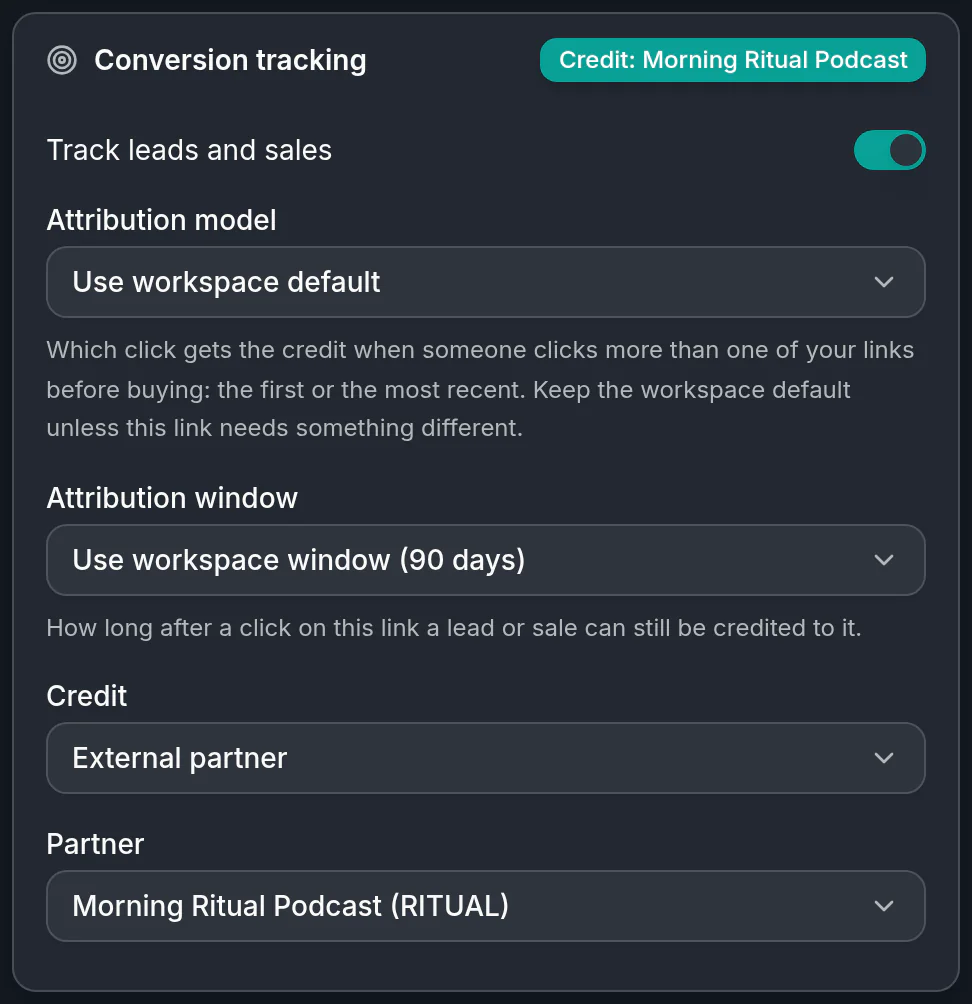
| Setting | What it does |
|---|---|
| Track leads and sales | Turns tracking on for this link. Shortn then adds a click id (snt_click_id) to the destination URL. With the workspace’s link tracking policy set to Default on, new links start with it on; with Required on all links, it can’t be turned off. |
| Attribution model | Use workspace default, First touch or Last touch: which click gets the credit when someone clicks more than one of your links before converting. |
| Attribution window | How long after a click on this link a lead or sale can still be credited to it: the workspace’s window, or 1 to 90 days. |
| Credit | Who the link’s leads and sales are credited to: Workspace, Workspace member, Team, External partner, Campaign or Custom (with an External ID or a Label). |
When the workspace enforces its attribution settings, the model and window are locked to the workspace’s.
A link that goes straight to a checkout always credits the click that brought the buyer there; see hosted checkouts.
Credit a partner to see what they bring and give them a portal. Members, teams and partners can earn commissions on the sales they’re credited with.
A cloaked link may lose conversions; see cloaking and conversion tracking.
Last updated on