Reports and Alerts
Shortn can send you reports and alerts through your destinations (email, webhook, Slack, Discord, or Microsoft Teams). Manage them from Reports in the dashboard.
Reports vs. alerts
- Reports run on a schedule — for example, a daily or weekly summary of clicks, top links, or geography.
- Alerts fire when something happens — for example, a link crosses a click threshold, expires, or fails a health check.
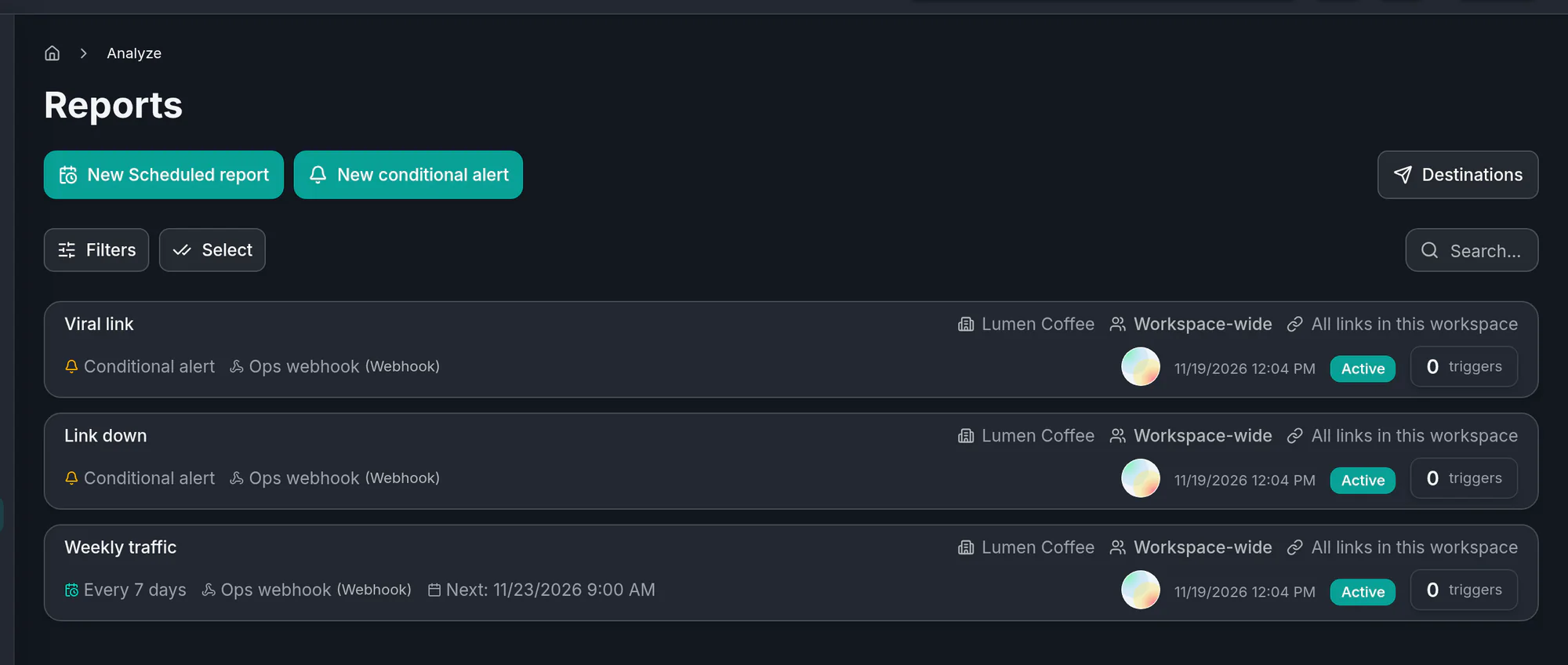
What you can do
- Scheduled Reports: Build a report from sections, and choose how often it’s sent and where.
- Alerts: Get a message when something happens to your links, such as a traffic spike, a sale, a failing link or an abuse report.
- Destinations: Where reports and alerts are sent: email, Slack, Discord, Microsoft Teams or a custom webhook.
- Tests and Delivery Status: Send a test, see how each delivery went, and what happens when a destination stops working.
Which links a report or alert covers
When you create a report or alert, pick a workspace and then the links it covers:
- Links in no team: links that belong to no team in the workspace.
- A team: the links assigned to that team.
You can pick several. Picking every team and Links in no team covers the whole workspace. You can only pick teams you belong to, unless you’re a workspace owner or administrator.
A report or alert with one team is visible to that team’s members. With several teams, it’s visible only to workspace owners, administrators and people who are members of every selected team, because it shows links from each of them. Its tags and destinations follow the same rule: you can use the ones in no team or in one of the selected teams.
Limits by plan
| Plan | Reports & alerts | Triggered alerts | Alerts sent a month | Scheduling |
|---|---|---|---|---|
| Free | 1 | — | — | Scheduled, at most weekly |
| Starter | 5 | ✓ | 500 | Scheduled |
| Professional | 20 | ✓ | 5,000 | Scheduled |
| Agency | 100 | ✓ | Unlimited | Scheduled |
Free plans can create scheduled reports (no more often than weekly) but not triggered alerts. See plans.
Reports and alerts count against the plan of whoever created them, and only while they’re on.
- Alerts a month: on Starter and Professional, the alerts that a creator’s alerts send are counted per calendar month (UTC); test sends don’t count. Alerts sent in the usage panel on Home and in Billing shows this month’s count against the limit. At 85% of it the creator gets one notice in the app. Once the limit is reached, further alerts that month are skipped (they show as “Skipped: alert limit” in the recent deliveries) and the creator is told once, in the app and by email. Scheduled reports keep going out.
- After a plan change: reports and alerts the new plan doesn’t allow are paused: the newest ones over its number of reports and alerts, alerts on Free, reports sent more often than weekly on Free, and ones sending to a webhook, Slack, Teams or Discord destination the plan doesn’t include. The creator is notified, and they turn back on by themselves once the plan allows them again.